Create Custom Relative Events
You may want to study segments that are before, during or after existing Events. For example, you may be interested in the activity levels prior to sleep so you can understand the impact of this pre-sleep activity on various sleep variables. In this example we will create Custom Relative Events that start 3h 30m prior to each Sleep Window Event with a duration of 3h.
Note
Before we can create Custom Events that are relative to Sleep Window Events, you should of course first create Sleep Window Events.
To create Relative Events,
click
Analyse>Events>Create Relative Events.
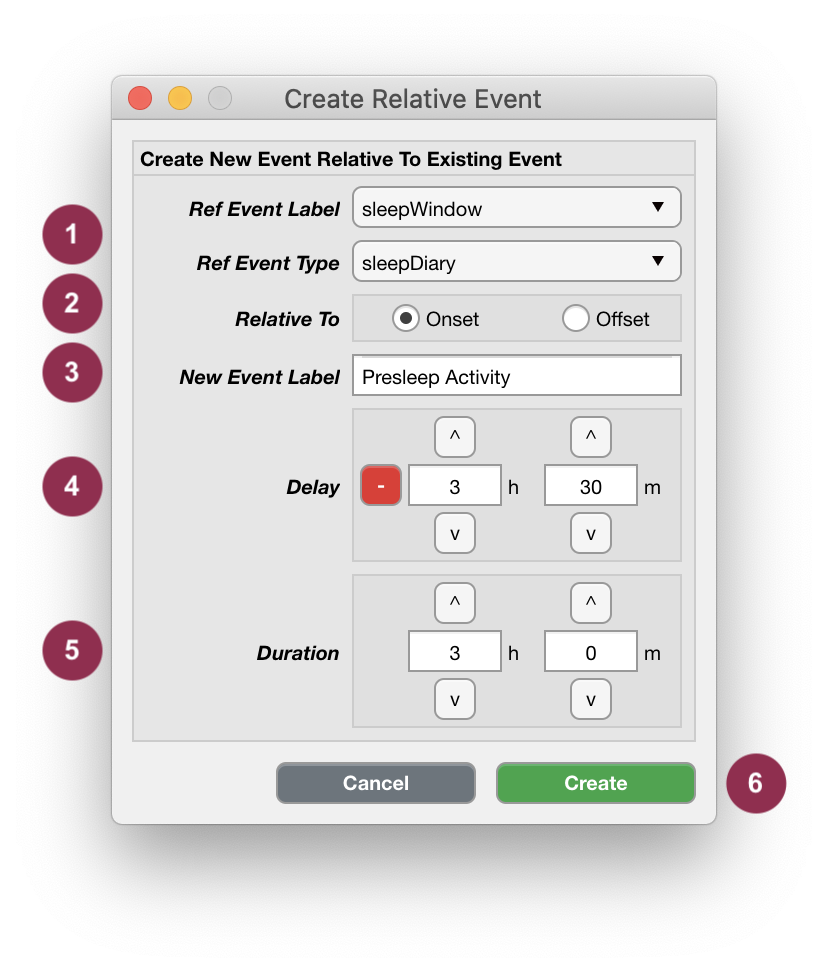
Select the Reference Event
LabelandType, i.e. select which Events you want to use to create the new Custom Events relative to. In this example we will select thesleepWindowEvents imported from asleepDiary.Use the radio-buttons to select whether the new Custom Events should be relative to the
onset(start) oroffset(end) of the Reference Events, e.g.onsetin our example.Define a short, specific and informative Event label for the new Custom Events, e.g.
Presleep Activity.
Note
In case you specify a new Event label that is used by Cicada, you’ll see the error message ‘Can’t use Cicada’s proprietary labels’. These labels are ‘start’, ‘button’, ‘reject’, ‘sleepwindow’, ‘sleepperiod’, and ‘waso’.
Specify the
delay, i.e. the difference between the onset of the new Custom Events and the onset/offset of the reference Events, e.g.-3h 30min our example. Click thesignbutton to switch between positive and negative delays, and use the^up andvdown buttons or directly type in the input fields to specify the delay hours and minutes.Specify the
durationof the new Custom Events, e.g.3h 0min our example. Note that the Event duration must be a positive non-zero value.Click
Createto create the Relative Events, or useCancelto abort.
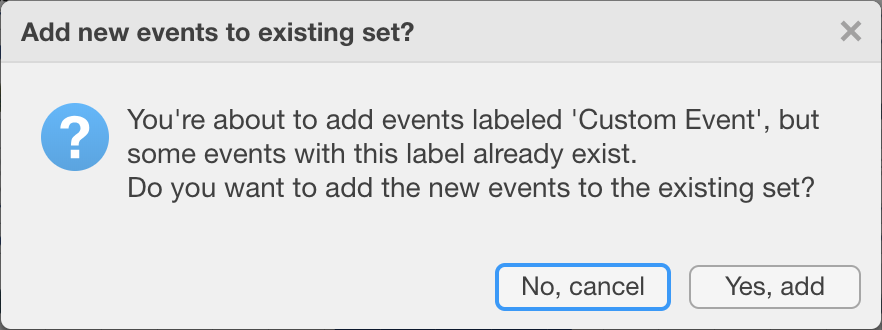
In case you specified an Event label that already exists, a question dialogue will ask you to confirm that you want to add the new events to the existing set.
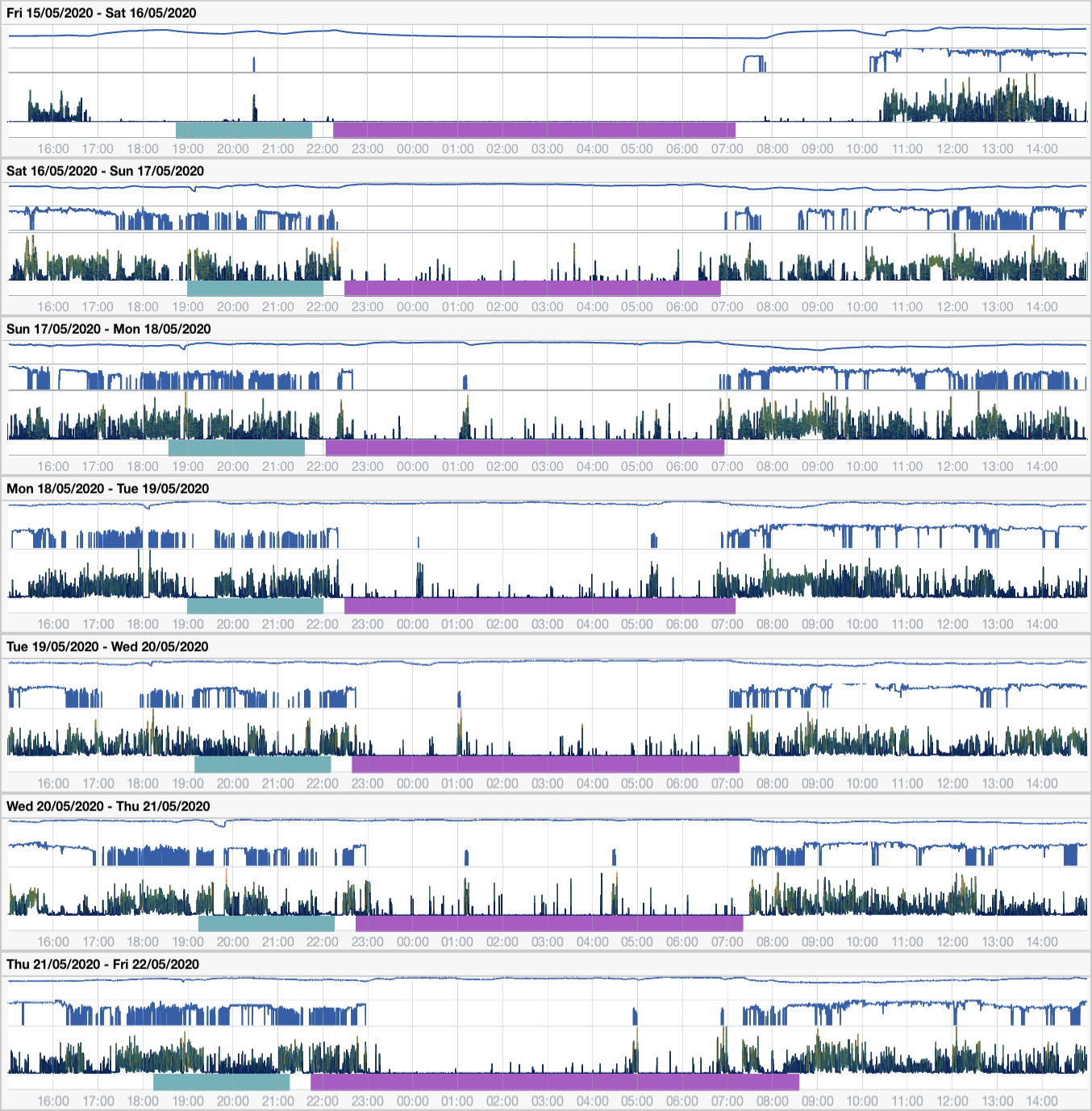
The new Custom Events are shown in the Event axes as turquoise bars, 3h 30m prior to each Sleep Window Event with a duration of 3h.
You can edit or delete any of the single Events you just created.
To edit or delete a Custom Event,
follow the instructions in this section on how to edit events.