Install Cicada for MacOS
Download the Cicada App Installer.
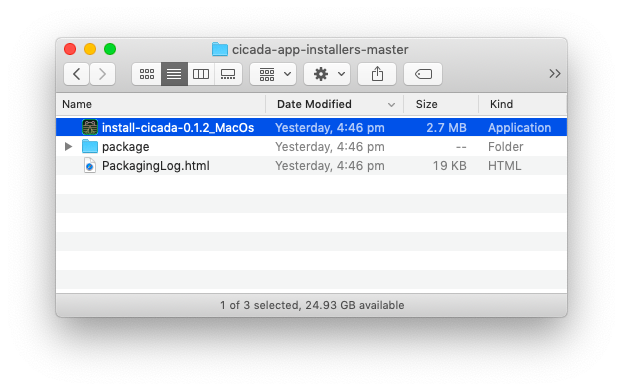
Unzip and open the downloaded folder ‘cicada-app-installers-master’.
Open the ‘install-cicada-x.x.x_MacOs’ App by holding
Controlwhile you click on the file, and select ‘Open’.
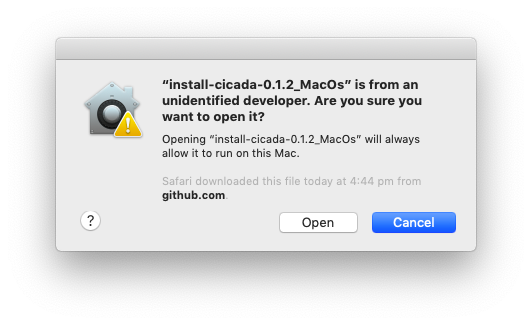
The warning above may appear, but don’t worry, click ‘Open’.
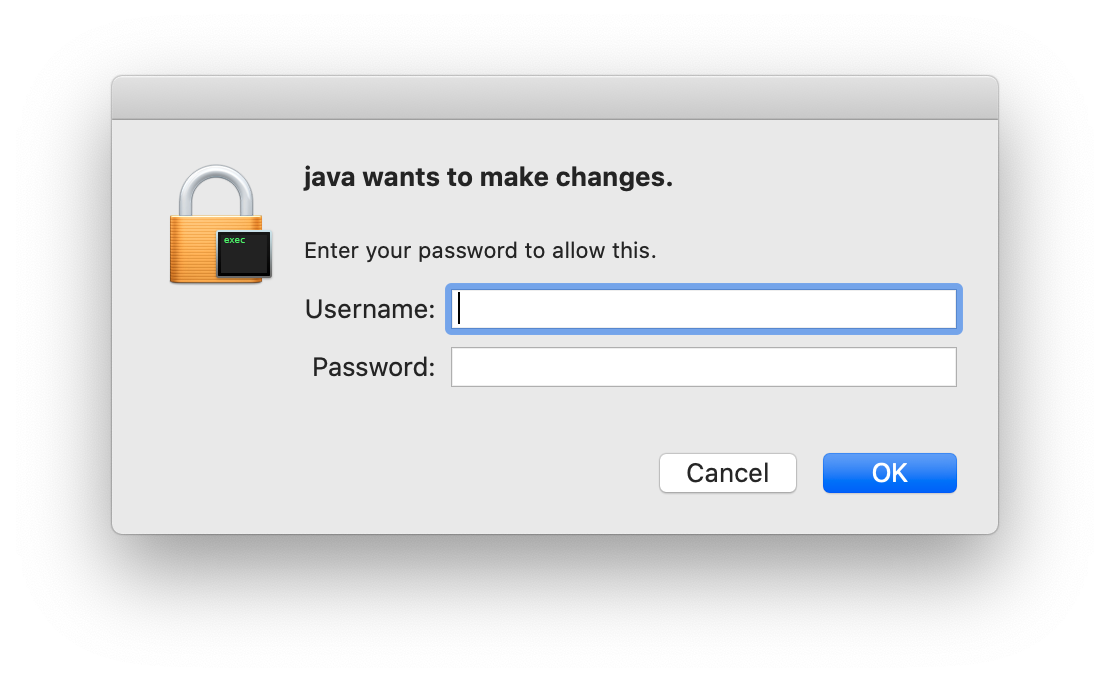
You may be prompted with the request to allow Java to make changes to your system. Enter your username and password for the Admin User on your Mac.
Follow the installation process by clicking ‘Next >’.
It is highly recommended to use the default installation folders.
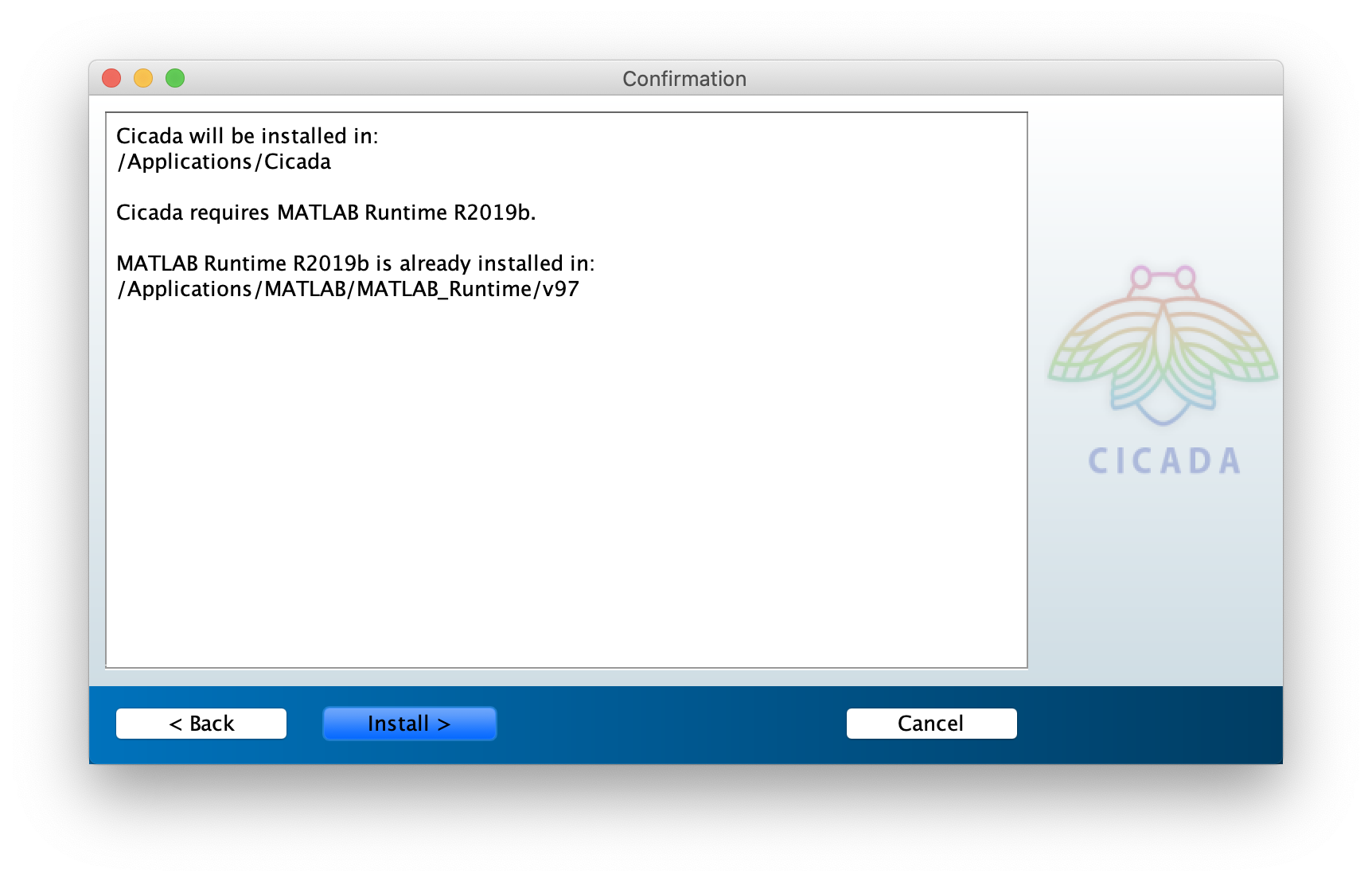
In the confirmation screen you can see where Cicada will be installed as well as a Matlab Runtime software. Matlab Runtime is a free software that enables the execution of compiled Matlab applications.
Click ‘Install >’ to confirm and begin the installation process.
If everything went well, the installer will show that the ‘installation completed successfully’.
Start Cicada
You can either run Cicada from the Terminal, or if you want to run Cicada simply by opening the Cicada.app from the Finder window, then we may need to tell your Mac where to find the Matlab Runtime Software.
Run Cicada from the Finder Window
Navigate to the Cicada installation folder, i.e. ‘/Applications/Cicada/application’ and open ‘Cicada.app’.
If this does not work, this probably means that your Mac does not know where to find the Matlab Runtime Software. Follow the instructions below or open Cicada from the ‘Terminal’ app.
Run Cicada using the Terminal
Open the ‘Terminal’ app, which is located in ‘/Applications/Utilities/Terminal’.
Change directory to the Cicada installation location by typing,
$ cd /Applications/Cicada/application
Start Cicada by running the
run_Cicada.shscript with the location of the Matlab Runtime Software as the first argument,
$ sh run_Cicada.sh /Applications/MATLAB/MATLAB_Runtime/v97
Locate the Matlab Runtime Software
We need to tell your Mac (just this once) where the Matlab Runtime Software is located. After we’ve done that, you can run Cicada directly from the Finder window.
Open the ‘Terminal’ app, which is located in ‘/Applications/Utilities/Terminal’.
Check whether the
DYLD_LIBRARY_PATHenvironment variable is defined by typing
$ echo $DYLD_LIBRARY_PATH
If the result is empty, it is undefined and we’ll create that environment variable, otherwise it is defined and we’ll append that variable.
This environment variable should be stored in a hidden file called ‘.bash_profile’ in your home folder, i.e. ‘/Users/[your-username]/.bash_profile’. Use the Finder window to navigate to your home folder and use
Command+Shift+Dotto toggle hidden files visible. If ‘.bash_profile’ does not exist yet, continue to step 5, otherwise continue to step 9.Open the ‘TextEdit’ app, and create a new empty document.
Click ‘Format’ > ‘Make Plain Text’ if this is not already a plain-text document.
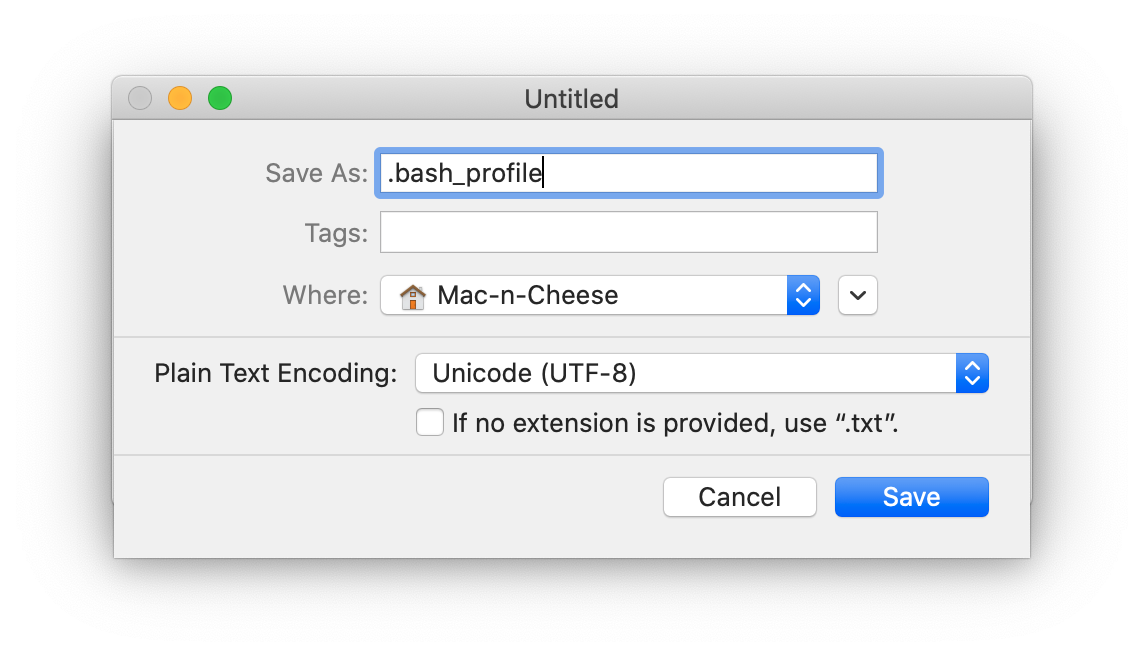
Click ‘File’ > ‘Save’, and type
.bash_profilein the ‘Save As’ field, and Select your home folder (indicated by the house icon) as the location. Make sure to un-tick the option ‘if no extension is provided, use “.txt”’. Click ‘Save’.

The warning message above may appear, but that’s ok, click ‘Use “.”’
If the environment variable was
undefined, add this line to the ‘.bash_profile’ file
export DYLD_LIBRARY_PATH=/Applications/MATLAB/MATLAB_Runtime/v97/runtime/maci64:/Applications/MATLAB/MATLAB_Runtime/v97/sys/os/maci64:/Applications/MATLAB/MATLAB_Runtime/v97/bin/maci64
defined, add this line to the ‘.bash_profile’ file
export DYLD_LIBRARY_PATH=${DYLD_LIBRARY_PATH}:/Applications/MATLAB/MATLAB_Runtime/v97/runtime/maci64:/Applications/MATLAB/MATLAB_Runtime/v97/sys/os/maci64:/Applications/MATLAB/MATLAB_Runtime/v97/bin/maci64
Save the ‘.bash_profile’ file and restart your Mac.
Start Cicada. Once you have specified the location of the Matlab Runtime Software, you can simply start Cicada from the Finder by navigating to ‘/Applications/Cicada/application’ and open ‘Cicada.app’.